
App guide
Mallet Map
See the note. Find the bar. A note-reading trainer that asks the question the way the instrument asks it — not on a staff in the abstract, but on the keyboard you are standing at.
- Build
1.4.0- Open the app
- mallet-map.backwerdrhythmshop.com
- Account or install
- None — runs fully offline
- Cost
- Free forever
What this app does
Mallet Map shows a written note and a drawing of a real keyboard percussion instrument, and asks you to connect them. You tap the bar, press Check, and find out.
Every instrument is drawn at its own range and told to you honestly — “Marimba 4.3-octave: 4.3 octaves, written A2–C7, sounds as written.” That sentence is doing real work: the transposing instruments in this family are where students get lost.
The two modes
| Mode | What it is |
|---|---|
| Practice | Untimed, unscored questions, one after another. New question whenever you want one. |
| Find It Challenge | A scored round, ending in a report of what you got and what you missed. |
Setting the question
| Control | Choices |
|---|---|
| Instrument | Marimba 4.3, 3, 2 or 5 octave; xylophone; vibraphone; bells. |
| Questions | Reading — name the pitch. Range & octave — find the right octave. Mixed. |
| Direction | Staff → Bar (see the note, find the bar) or Bar → Note (see the bar, name the note). |
| Note range | Starter (5 notes), One octave, Two octaves, Low / Middle / Upper third, Full instrument. |
| Accidentals | Naturals, Sharps, Flats, All. |
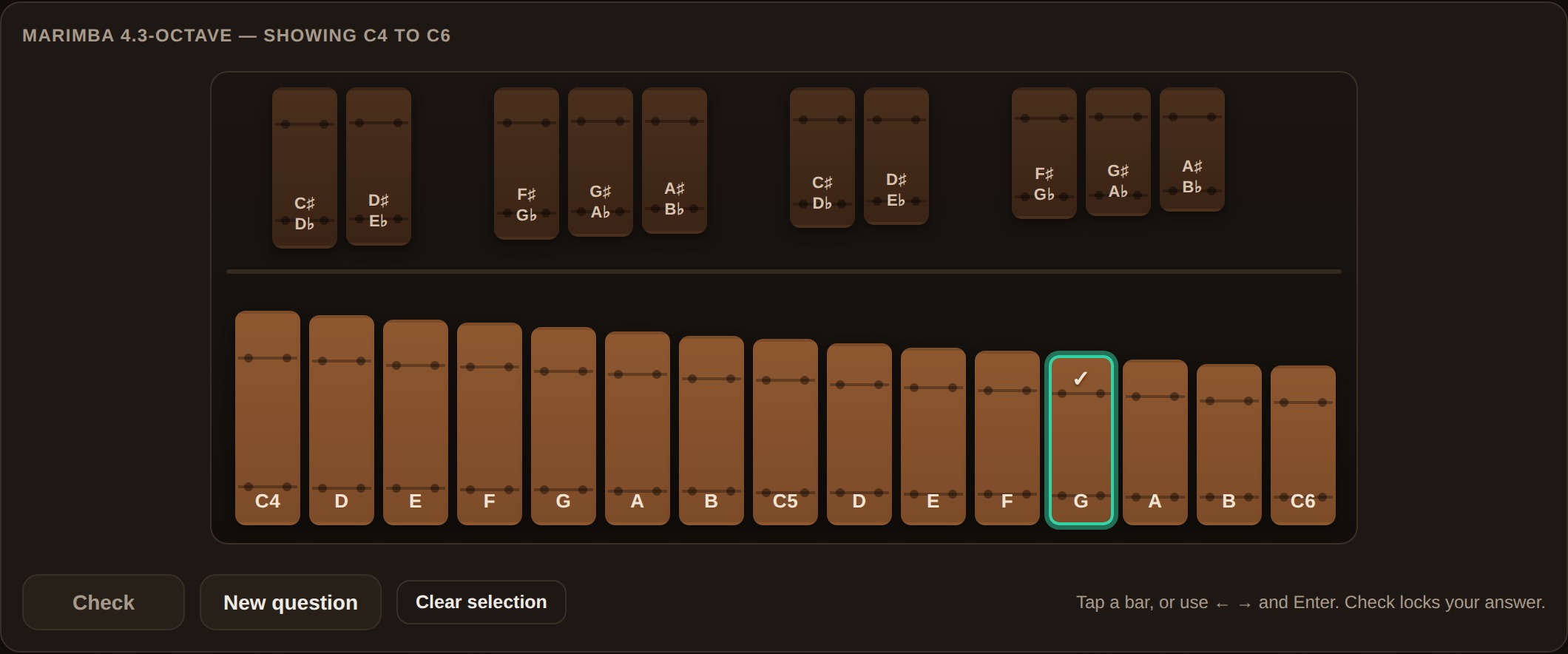
The supports, and turning them down
Three settings decide how much help the board gives you. They are the real difficulty control in this app — more than the note range is.
| Control | Choices | Note |
|---|---|---|
| Bar labels | All · C anchors · None | “C anchors” is the useful middle step — the Cs stay named, everything else goes quiet. |
| Middle C | Off · Show | Marks middle C on the drawing. |
| Sound | On · Off | With sound on you can Play the note before answering, and after a wrong answer Compare yours vs correct. |
Turn the labels down before you widen the range. Full instrument with every bar labelled is an easier question than one octave with no labels, and only one of the two is teaching you to read.
Answering
- Tap a bar, or move with ← → and press Enter.
- Check locks the answer in.
- Clear selection if you want to start the answer over before checking.
- New question moves on.
Nothing is scored until you press Check, so there is no penalty for thinking with the pointer.
Sharing a setup
Copy shareable link produces a URL carrying the instrument, question type, direction, range, accidentals and support levels. A student opening it gets the exact drill you configured — same supports, same range — with no account.
Controls and accessibility
Mallet Map supports full keyboard operation with visible focus, honours the system reduced-motion preference, and lays out for phones, tablets and classroom displays. Every bar is a labelled button, and the instrument's range and transposition are stated in text rather than implied by the drawing.
Privacy
Mallet Map runs fully offline and needs no account. Progress and settings stay in this browser's local storage; Reset local progress clears them.
Help and feedback
- Report a problem: support@backwerdrhythmshop.com
- Request a feature: feedback@backwerdrhythmshop.com
Include the app name, the build in the footer, the page URL, your browser, what you expected and what happened.
Teaching this, rather than practising it?
Mallet Board is the projector-side companion — the same instruments, drawn for the front of the room.